
How to Use the Jumpo Parent App

The Jumpo AI Camera is built for kids, but the magic for parents happens in the Jumpo Parent app. It’s where every photo your child captures comes to life, where you decide what they can do with their camera, and where the whole family gets to share in the moments — whether grandma lives next door or on the other side of the world. If you’re wondering what the app actually does, or you’re weighing up a purchase, this guide walks you through the main features and the three things most parents want to do first: connect a camera, view your child’s photos, and invite family members.
What the Parent App Is For
Think of the Jumpo camera as the device your child carries around, and the Parent app as your control center for it. The camera takes the pictures; the app is where those pictures are stored, organized, enhanced by AI, and shared. Because the camera has its own cellular connectivity built in, photos travel to your app automatically — there’s no fiddling with cables, memory cards, or asking your child to hand over a device at the end of the day.
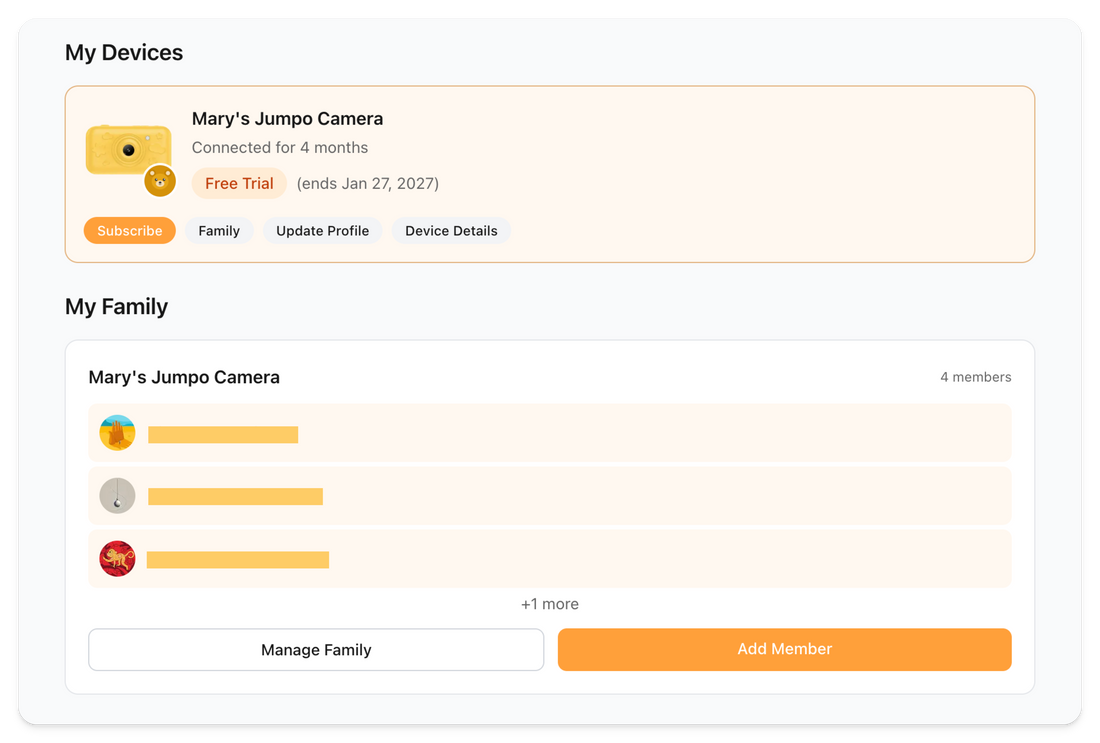
From the app you manage everything in one place: the camera’s settings, your subscription, where photos are stored, and who in your family gets to see them. It’s designed so that a parent stays firmly in control while kids simply enjoy taking pictures.
The Main Features at a Glance
Before we get into the step-by-step, here’s what the Parent app brings together:
- Automatic photo sync over cellular. Pictures appear in your app shortly after they’re taken, thanks to the camera’s built-in eSIM connectivity — no home Wi-Fi setup required.
- AI features. Beyond storing photos, the camera and app can apply creative AI styles and generate playful versions of your child’s pictures, turning everyday snapshots into something memorable.
- Flexible storage. Choose to keep photos in Jumpo’s cloud for a limited time, or connect your Google Photos account and same image for the long term.
- Family sharing. Invite parents, grandparents, and other relatives to view photos, each with their own family role.
- Subscription and plan management. See your plan, storage capacity, and what’s included — and upgrade when you need more.
Getting Started: Connecting Your Camera
The first thing to do after unboxing is to pair the camera with your account. Here’s the general flow:
- Download the Jumpo Parent app and create your account. You can sign up with your email or sign in with Google in a couple of taps.
- Power on the camera and make sure it has a charge. Because connectivity is built in, you don’t need to connect it to your home network first.
- Add a device. In the app, choose to add or bind a new device and follow the on-screen prompts. The camera has a unique device ID, and the app guides you through linking it to your account.
- Confirm the connection. Once paired, the camera shows up in your app with its name, status, and storage details. The first photos your child takes will begin appearing automatically.
The parent who completes this setup becomes the Device Owner — the account with full control over the camera’s settings, subscription, and family sharing. That distinction matters when you start inviting other people, which we’ll cover below.
Viewing Your Child’s Photos
This is the part most parents fall in love with. Open the app and you’ll see your child’s latest photos waiting for you, organized so you can find moments quickly rather than scrolling endlessly.
Photos are grouped into albums. You’ll typically see an album of original shots straight from the camera, plus special collections for AI-stylized and AI-generated images. Each photo carries useful details — when it was taken, its quality level, and its sync status — so you always know whether an image has finished uploading.
A few things worth knowing as you browse:
- Quality levels. Depending on your plan, photos are stored at different quality levels. Higher-tier plans unlock sharper, higher-definition images.
- Storage status. The app shows how much of your storage capacity you’ve used, so there are no surprises as your child’s collection grows.
- AI creations. Look for the AI albums to see stylized or reimagined versions of your child’s photos — a fun way to turn an ordinary afternoon into a keepsake.
Because everything syncs over cellular, you can check in on the day’s photos from anywhere, even when you and your child aren’t in the same place.
Choosing Where Photos Are Stored
Jumpo gives you control over where memories live. In the app you can choose to store photos in Jumpo’s own cloud, connect your Google Photos account so images flow into your existing library. Connecting Google Photos is a quick, secure sign-in, and once linked, your child’s pictures can sync into your Google albums automatically. If you ever want to disconnect, you stay in control of that too.
Inviting Family Members
One of the nicest things about Jumpo is that the joy of your child’s photos doesn’t have to stay on one camera. As the Device Owner, you can invite other family members so they can view the photos in their own Jumpo account.
Here’s how family sharing works:
- Open family sharing for your camera in the app and choose to invite someone.
- Enter their email address. Jumpo sends them an invitation to join.
- They accept and join. Once they accept the invitation, they become a Device Viewer: they can see the photos, but they can’t change camera settings or manage the subscription. Those controls stay with you.
This is what makes Jumpo special for grandparents in particular — they get to watch their grandchild grow up through everyday photos, without needing any technical know-how. They simply open the app and the latest pictures are there. Invitations can be managed, and if circumstances change, you can cancel access at any time.
Managing Your Subscription
A paid plan is available for extra features — like AI, storage and additional connectivity. The Parent app shows your current plan, what’s included, and when it renews. When your child is filling up the camera faster than expected or you want higher-quality images, upgrading is a few taps away. Everything is handled securely in the app, so you can adjust your plan whenever your family’s needs change.
A Few Tips to Get the Most Out of It
- Set up storage early. Connect Google Photos during setup so every photo is captured from day one.
- Invite grandparents first. They’re often the most delighted users, and family sharing takes less than a minute to set up.
- Explore the AI albums. The stylized and AI-generated collections are easy to overlook but are some of the most fun the app has to offer.
- Keep an eye on storage. Check your usage now and then so you can upgrade before you run out of room for new memories.
The Bottom Line
The Jumpo Parent app turns a kid-friendly camera into a shared family experience. You connect the camera once, photos arrive on their own over cellular, and from there you can organize, enhance, store, and share every moment. For parents, it’s effortless oversight and a growing album of your child’s world. For grandparents and relatives, it’s a front-row seat to childhood — no matter where they are. If you’re considering a Jumpo camera, the Parent app is the part that quietly ties it all together and makes the whole thing worth it.


